
A ChatGPT business profile lets you claim and verify your business so ChatGPT has accurate, owner-confirmed information about it. This guide walks through the full registration, from the first screen to the review result, and what to do if verification fails. You can start your registration at the ChatGPT Business Hub.
What a ChatGPT business profile is
A ChatGPT business profile lets you claim and verify your business so ChatGPT has accurate, owner-confirmed information about it. It works much like claiming a Google Business Profile, but for AI answers instead of Google Maps.
In the dashboard this guide is based on, a profile holds your business details, a Brand insights view (mentions and website clicks), an agent builder, and a product catalog. A profile stays in Draft until your identity and business are verified.
The feature is new and still rolling out, so labels and steps may differ for your account. This guide walks through what the registration flow looked like in November 2026. It is not official OpenAI documentation, so check the on-screen instructions if something differs.
Throughout this guide, Your Brand and yourbrand.com stand in for your own company name and website.

Before you start
Gather these items first, because the domain step expires and the identity step needs documents.
- A ChatGPT account. The profile in our test was created from a Plus account. Plan requirements may vary.
- A live website at yourbrand.com, plus access to its DNS settings (your registrar, Cloudflare, or web host) so you can add a TXT record.
- A government-issued ID with your name exactly as it appears on your business registration.
- Your business details: the exact registered business name, a physical address (no PO boxes), your registered address if it differs, and your tax ID (optional).
- A short description, about 300 characters or fewer. The description box in our test cut off at roughly 300.
Decide your official name and address format now and write them down. You will type them into several places, and they should match your registration and website exactly.
Step-by-step registration
Follow the steps in this order.
1Start a new business profile
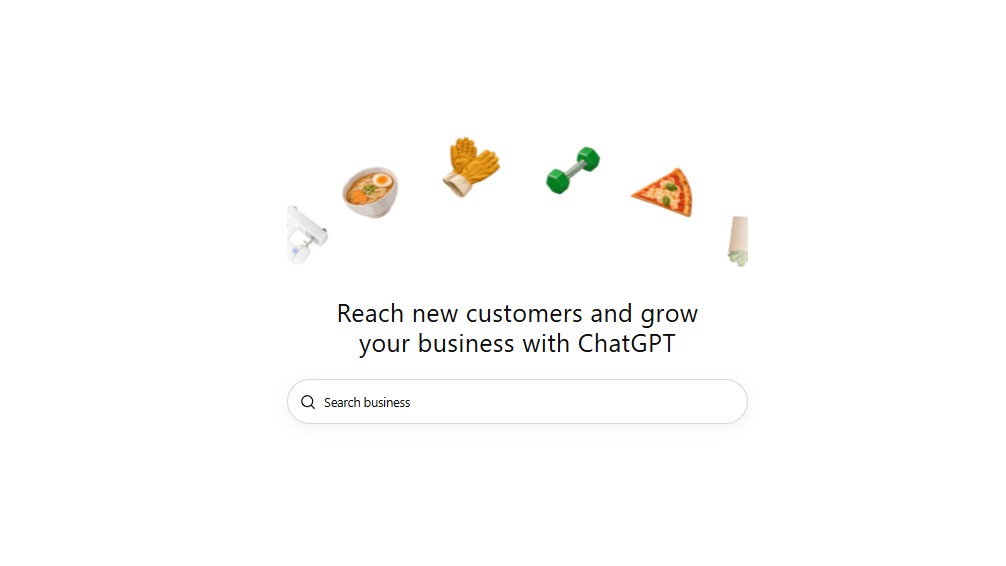
Open the ChatGPT Business Hub and start a new business profile. Enter your business name (Your Brand) and website (yourbrand.com).

2Choose how customers interact with you
The options are “At a physical location” and “Through a website.” Pick the website option if customers find and contact you online.

3Verify that you control your domain
ChatGPT shows a DNS TXT record for you to add to yourbrand.com:
- Type: TXT
- Name or host:
openai-business-profile(many DNS panels add the domain automatically. If yours does not, useopenai-business-profile.yourbrand.com) - Value: the long string shown on screen. Use the copy icon and paste it. Do not retype it.
Save the record, wait a few minutes, then click Verify domain.
The record has an expiry time shown on screen (ours was under an hour away). If it expires, generate a new one.

4Pick a category and write a description
You can choose only one category, so use the description to cover everything else. Keep it to about 300 characters.

5Add contact details
Your business phone number and email appear on the profile preview. Use the ones customers should actually use.

6Answer the delivery and return questions
If you sell services and not physical goods, choose “We don’t offer delivery” and “Returns not accepted.”

7Submit the profile
The profile is saved as a Draft. You will land on an Overview page that shows a banner to verify your identity.

8Verify your identity
Click Verify and complete the government ID check. You will be asked to take a photo of your government-issued ID and a photo of your face (a selfie). Use good light and make sure all four corners of the ID are visible. Editing business info and publishing are locked until this is done.
The name on your ID should match the owner name on your business registration, and the business name should match your registration word for word.
9Fill in Business Details
Enter your tax ID (optional), confirm your website, add your physical address (no PO boxes), and confirm your legal registered address. Check “Same as physical address” only if they are identical.
The tax ID field is marked optional. In the Philippines, this is your TIN. In the United States, it is typically an EIN (Employer Identification Number). We only tested this with a Philippine account, so follow the label on your own screen. If you are unsure which number to use, you can leave it blank.
10Wait for review
After submitting, the screen says your business verification is under review. Use Check status to follow up. Your profile stays in Draft until it is approved.

Receiving your verification codes
During verification you may be asked to confirm a phone number and a business email.
- Text message. Enter the code that arrives by text.
- If the text does not arrive, choose the call option. You will be asked to press a number during the call to receive your code.
- Business email. ChatGPT sends a message titled “Verify your business email for ChatGPT” from OpenAI. It contains a temporary code that confirms you can receive email at your business address. Enter it on screen. If you did not request it, ignore the email.


If your verification fails
You may receive an email from Persona, the identity verification service, titled “We could not complete your business verification.” It says Persona was unable to verify your identity for managing Your Company’s business profile on ChatGPT. In the dashboard, the profile preview then shows Verification failed in red.


The visible part of the email did not give a reason. These are common causes of ID check failures:
- The name on your ID does not match the name you entered.
- The business name does not match your registration word for word.
- The ID photo is blurry, has glare, or cuts off a corner.
- The ID is expired or unsupported.
- Open the full email. Extra details may be hidden behind the “…” button.
- Check your ID name and business name against your registration documents.
- Retake your ID photo in good light with all four corners visible.
- Look for a retry option in your business profile or Business Hub. If there is none, contact support from the Help menu and include the details from the email.
Common mistakes and how to avoid them
Most delays come from five avoidable problems.
| Mistake | What goes wrong | How to avoid it |
|---|---|---|
| Letting the TXT record expire | Domain verification fails | Add the record right after it is generated. If it expires, generate a new one. |
| Entering the full domain as the host when your DNS panel adds it for you | The record is created under a doubled domain name and never verifies | After saving, check how the host is displayed in your DNS panel. |
| Using a business name or tax ID that does not match your registration | The review can be rejected, and the fields may be locked afterward | Copy the details from your registration. The tax ID is optional, so skip it if you are not sure. |
| Trying to edit business info before identity verification | The edit button is locked | Complete the government ID check first. |
| Using a different address format on each platform | Mismatched details weaken trust signals | Choose one address format and use it on your website, Google Business Profile, and ChatGPT. |
If you enter something wrong, you generally cannot fix it while the profile is under review. Wait for the result, or contact support from the Help menu.
After you submit: what to expect
Your profile stays in Draft until review finishes, and most of the dashboard is empty at first. Here is what you will see:
- Overview. Brand insights shows two numbers, Mentions and Website clicks, with 7-day and 28-day views. A new profile shows “No data is available for this timeframe” until ChatGPT has something to report.
- Agent insights. A second tab for activity once you publish a business agent.
- Agent builder. Sets up an agent that answers questions about your business in ChatGPT. It requires identity verification first.
- Products. A place to upload a product catalog. If you sell services only, you can skip it.
- Get started cards. These suggest reviewing your agent’s guidelines before publishing, uploading products, and upgrading to a ChatGPT Business plan. The Business plan is for teams that want a shared workspace, so you do not need it to register a profile.

The confirmation screen also offered an advertising credit for ChatGPT Ads. Read the terms before starting any ad spend.
Once your profile is approved, the Edit business info button should unlock. Check your details, then publish.
Keep your business details consistent everywhere
The single most useful habit is to use one exact name, address, and phone number (your NAP) on every platform. Mismatches between your website, Google Business Profile, and ChatGPT profile make it harder for people and AI tools to trust that they are the same business.
- Choose one address format and copy it everywhere. For example:
Block 1 Lot 2 Sample St, Your Subdivision, Your Barangay, Your City, Province 0000. - Match your registration. Use the business name and address on your official documents wherever a legal name is requested.
- Keep the brand name consistent. If your legal name differs from the name customers know, list the legal name only where it is required and keep Your Brand as the public name.
- Update your website footer and contact page to the same address and phone number.
- Audit your Google Business Profile. Google may display address lines in a different order than you entered them. That is formatting, not a data error, so avoid repeated edits that can trigger re-review.
- Recheck major citations (directories, social profiles) after any change.
Frequently asked questions
Does registering cost anything?
No payment step appeared during registration in our test. Read the terms on screen, since pricing for related features such as ads or the Business plan may differ.
How long does review take?
We could not find an official timeframe. The screen says to return later and use Check status.
Can I change my business name or address afterward?
Editing is locked while the profile is under review. After approval, the Edit business info button should unlock. We could not confirm whether changes trigger another review, so change details only when you need to.
Do I need a ChatGPT Business plan?
No. That plan is for teams that want a shared workspace. It is separate from registering a business profile.
Can a marketing agency manage a client’s profile?
We found no documented agency or delegated access. Verification uses the business owner’s government ID, so the owner should register and verify. Do not ask clients to share their logins or ID. Agencies can walk clients through the steps and track AI visibility with third-party tools in the meantime.
Will registering make ChatGPT recommend my business?
No. A verified profile gives ChatGPT accurate, owner-confirmed information, but whether you are mentioned depends on many factors. Consistent details across the web, a strong website, and good reviews all help.
Something does not match what I see on screen.
The feature is new and changing. Follow the on-screen instructions and use the Help menu in ChatGPT to contact support.

- How to Register Your Business on ChatGPT: A Step-by-Step Guide - November 11, 2026
- Google Business Profile Q&A Is Back, But Not the Way You Remember It - November 10, 2026
- Why 98% of Roofing Company Content Gets Zero Traffic (And How to Fix It) - July 1, 2025